How to Scan Documents With Your Phone and Get Clean PDFs

Quick answer: photograph each page flat and in good light, turn the photos into a PDF with JPG to PDF, then run Clean Scanned PDF to whiten the background and sharpen the text. Add OCR if you want to search it later.
Your phone's camera is better than most office scanners from a decade ago. What separates a muddy phone photo from a crisp, professional-looking scan is a few habits when you take the picture, and one cleanup step afterwards.
What a cleanup actually does
Here's a real example: a grey, speckled page before and after PDFTechPro's Clean Scanned PDF, unedited.
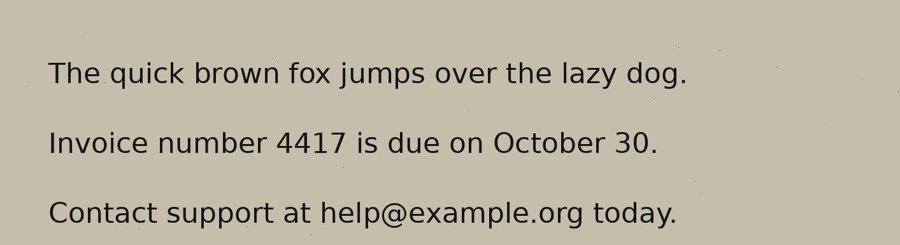
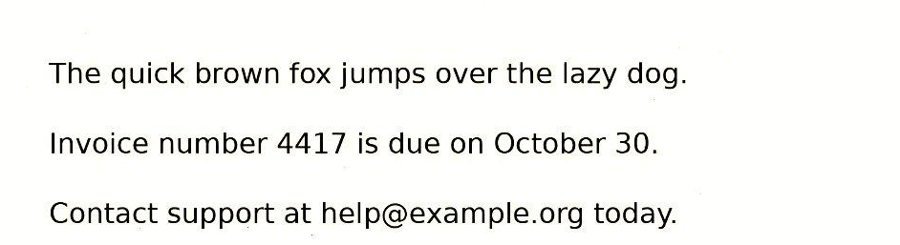
The tool measures the paper color on each page, maps it to pure white, darkens the text, and removes isolated dust specks while leaving small marks that belong to letters, such as the dot on an i, alone.
Step 1: Shoot the page properly
- Light: daylight near a window, or a bright room. Turn the flash off; it creates a glare spot.
- Background: put the page on a dark, plain surface so the edges stand out.
- Angle: hold the phone directly above the page, parallel to it. Shooting at an angle makes lines slope and text shrink toward the top.
- Shadows: stand so your own shadow (and the phone's) doesn't fall across the page.
- Focus: tap on the text to focus, then zoom into the photo to confirm the smallest print is sharp.
Step 2: Turn the photos into one PDF
Open JPG to PDF in your phone's browser, select all the page photos, put them in order and convert. Choose Letter (US/Canada) or A4 so it prints like a normal document. There's a detailed walkthrough in How to turn phone photos into a PDF.
Step 3: Clean and straighten
- Clean Scanned PDF: choose Whiten background for pages with photos or colored stamps, or Black & white for typed documents (the crispest result and the smallest file).
- Deskew PDF: if pages are slightly crooked, it measures each page's tilt and straightens it automatically. In our test it detected and fixed a 3° tilt.
- Rotate PDF: for pages that are sideways or upside down.
Step 4: Make it searchable and send-ready
- Searchable: run OCR PDF so you can find words later with Ctrl+F. The pages look the same.
- Small enough to upload: if the file is over a portal's limit, use Compress PDF.
- Private details: if you're sharing a statement or ID, black out what isn't needed with Redact PDF.
Color, grayscale or black and white?
| Mode | Best for | File size |
|---|---|---|
| Black & white | Letters, contracts, forms, typed text | Smallest |
| Whitened color/gray | Pages with photos, signatures in blue, colored stamps | Medium |
| Original color | Photos, artwork, anything where color matters | Largest |
Everything stays on your phone
All of these tools run in your browser. The photos and PDFs you create are never uploaded to PDFTechPro, which matters when the document is a bank statement, an ID or a medical form.
Tools used in this guide
Frequently asked questions
Is a phone scan good enough for official documents?
Usually, yes, if the page is sharp, flat, evenly lit and fully in frame. Many portals accept phone scans; check any specific resolution or file-size rules they publish.
Black and white or color?
Black and white for typed documents: it's crisper and smaller. Keep color for photos, colored stamps or anything where color carries meaning.
How do I make a scanned PDF searchable?
Run it through OCR PDF. The pages look the same, but you can search, select and copy the text.